Building a deck with the AI Architect
The AI Architect tab builds a deck suggestion from a short description of what you want, drawing on your collection. You choose the collection, format, and colors, and describe the strategy. The result is a suggestion for you to check, not a finished deck.
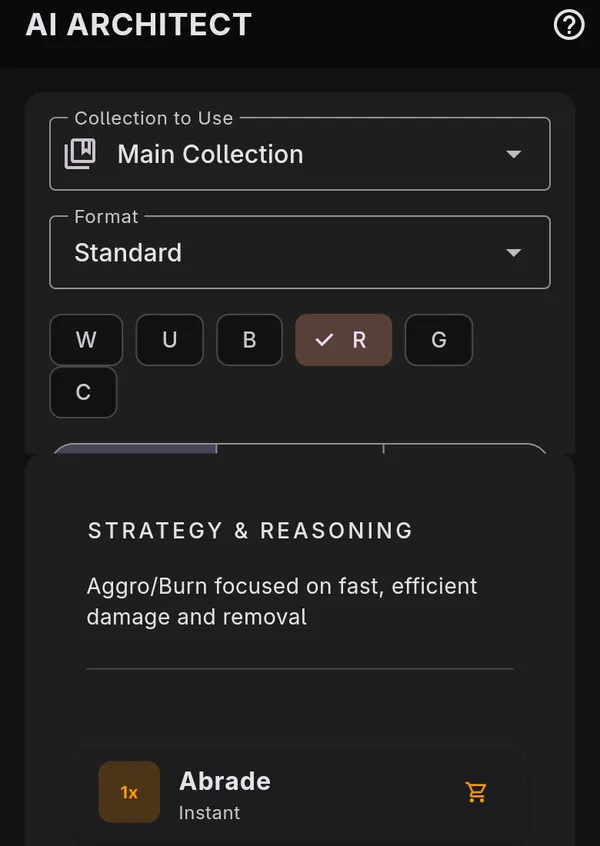
Set up the build
Section titled “Set up the build”- Open AI Architect.
- Under Collection to Use, pick one collection or All Collections.
- Pick a Format. It starts on your default format.
- Tap the color chips (W, U, B, R, G) to limit the deck to those colors. C limits it to colorless cards.
- Choose All, Physical, or Arena to say which copies of your cards count.
- Leave Strict Mode on to build only from cards you own. The deck never uses more copies of a card than the collection holds, except basic lands. Turn it off to let the build use any card in the catalog.
The line above the prompt box starts with “Runs on” and names the model the build will use. To change it, see AI providers.
Choose a commander
Section titled “Choose a commander”In a format with a command zone, such as Commander or Oathbreaker, a button to choose the commander appears under the format.
- Tap it. A sheet lists the cards in your collection that can lead a deck in that format.
- Search by name or type, or filter by color. Switch to All cards to search the whole catalog. Cards you don’t own are marked “Not in collection”.
- Tap a card to choose it. The color chips change to match its color identity.
If the commander can take a partner, or in Oathbreaker a signature spell, a second button appears to add one. That list only shows cards that can pair with your first pick. Switching to a format without a command zone clears the commander.
Write the prompt and generate
Section titled “Write the prompt and generate”- Describe the strategy or archetype in the prompt box, in your own words.
- Tap GENERATE ARCHITECT DECK.
If the on-device model isn’t downloaded yet, the app asks first. Tap DOWNLOAD to fetch it and start the build, or NOT NOW to stop. See The AI model download.
What the build does
Section titled “What the build does”A build takes minutes. While it runs, the output panel shows the current step with the recent ones faded beneath it. The build plans a strategy from your prompt, searches the card pool, drafts cards toward a mix of roles, reviews the mana base, and fills in basic lands.
You can switch tabs. The AI Architect tab shows a spinner while the build runs, and a message tells you when your deck is ready. Tap CANCEL to stop a build.
When the build uses a network model that doesn’t respond, it carries on without the model and tells you so in the result.
Review the result
Section titled “Review the result”The result shows STRATEGY & REASONING first, then the card list with quantities. Cards not in your collection have a shopping cart icon. Tap a card to open its details.
A colored banner above the result means the build fell short: the deck is below or above the legal deck size, it finished with limitations, or the build failed. The reasons are listed under it.
Check the list before you rely on it. AI suggestions can be wrong, including about card choices, legality, and rulings, as section 6 of the Terms of Use says.
Save or discard it
Section titled “Save or discard it”To keep the deck:
- Tap SAVE THIS DECK.
- Edit the Deck Name if you like.
- Tap SAVE. The app opens the new deck.
There is no discard button. To reject a result, leave it unsaved, or change the prompt and generate again. A new build replaces the old result.
Refine an existing deck
Section titled “Refine an existing deck”- Open the deck and tap Refine with AI.
- The screen title changes to show you are continuing that deck. Describe what to change and generate.
- Tap SAVE THIS DECK, then SAVE in the UPDATE DECK dialog. It lists the changes, and saving makes the deck match the result, including any cards the build cut.
Tap Start fresh to leave refine mode and build a new deck instead.