Collection Insights
Collection Insights breaks down what is in your collection and tracks what it is worth. It has three tabs: STATS, FINANCIALS, and LOANS.
To open it, go to Cards and tap the chart icon in the top bar (its tooltip reads Collection Insights).
STATS covers the collection picked in the switcher at the top of Cards. Pick ALL COLLECTIONS there to see everything. The line at the top of the tab says which scope you are looking at.
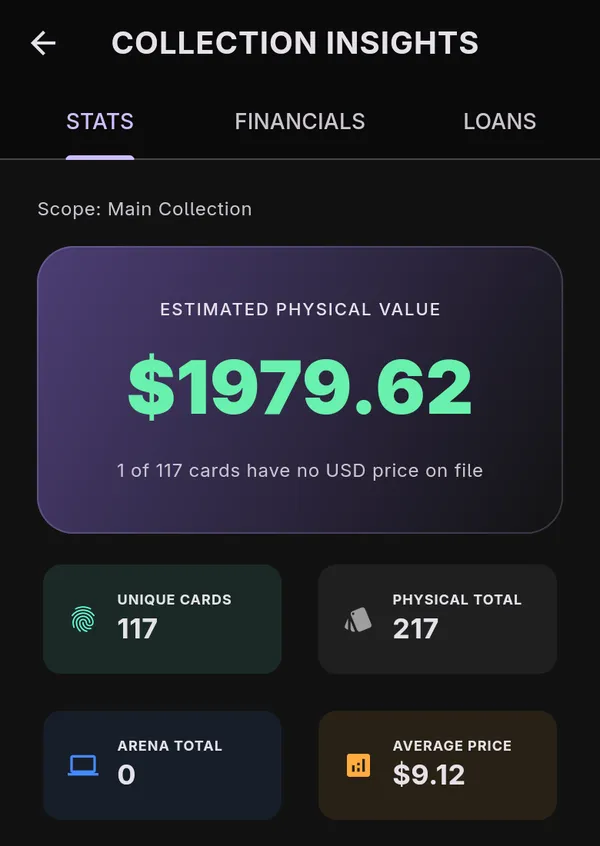
- ESTIMATED PHYSICAL VALUE adds up the price of every physical copy you own. Underneath, it tells you how many cards have no price in your currency, how much of the value is out on loan, and how many borrowed copies it left out.
- UNIQUE CARDS, PHYSICAL TOTAL, ARENA TOTAL, and AVERAGE PRICE sit below it.
- MOST VALUABLE HOLDINGS lists your five most valuable cards, ranked by copies times price. Tap one to open the card.
The charts below count every copy you own, physical and Arena. Cards you have borrowed are left out.
- COLOR IDENTITY splits copies by color. A multicolored card counts toward each of its colors, and a card with none counts as Colorless.
- RARITY DISTRIBUTION splits copies into mythic, rare, uncommon, common, and other.
- TYPE DISTRIBUTION counts each card once, under the first of Creature, Instant, Sorcery, Artifact, Enchantment, Planeswalker, or Land that its type line contains.
- TOP SUBTYPES lists the ten subtypes you own the most copies of, such as creature types.
- FORMAT READINESS shows how many of your physical copies are legal in each format.
There is no mana curve for a whole collection. Each deck has one, on the deck’s ANALYTICS tab.
FINANCIALS
Section titled “FINANCIALS”FINANCIALS always covers all your collections.
The card at the top shows your current PORTFOLIO VALUE, with a line chart of how it has changed and the change between the first and last day on the chart. Borrowed cards are not counted. Touch the chart to see a day’s value and how many cards were priced that day.
The chart is built from price snapshots stored in the app’s database. The app takes one when it finishes Sync Card Catalog or Refresh Prices, and prices refresh on their own when you open the app if the last refresh is more than a day old. Each snapshot records the prices of every card in your collections and decks. There is at most one per day. Snapshots older than 90 days are thinned to one per week. The chart needs two days of snapshots before it draws a line. Both actions are described on Install and first run.
Prices come from Scryfall. The value is an estimate from those prices, not what your cards would sell for.
Transactions
Section titled “Transactions”TRANSACTIONS is a ledger of what you bought, sold, and traded.
- Tap Add Transaction (the plus icon next to the heading).
- Tap Select Card and search for the card.
- Choose a Type: Buy, Sell, Trade In, or Trade Out.
- Enter the Quantity, the Price per card, and the Date. Notes is optional.
- Tap SAVE.
Tap a transaction to correct it, or to remove it with DELETE. UNDO on the message that follows puts it back. The list shows your 100 most recent transactions.
Recording a transaction does not add cards to or remove them from your collection, and does not change the portfolio value.
LOANS lists cards you have LOANED OUT and cards you have BORROWED, oldest first, each with the value of the cards involved. Tap Mark Returned on a card when it comes back.
Currency
Section titled “Currency”- Open Settings and find Appearance.
- Under Currency, choose USD or EUR.
Every figure on Collection Insights switches to that currency. Nothing is converted: Scryfall quotes US dollar and euro prices separately, so a card priced in one may have no price in the other, and counts as unpriced. A transaction keeps the currency it was recorded in.