The play tracker
The play tracker is a life counter for two to six players. Attach a deck and each game you finish is recorded in that deck’s match history, the same as entering the match by hand.
Open the tracker
Section titled “Open the tracker”There are two ways in:
- From a deck. Open the deck, go to the PLAYTEST tab, and tap START A GAME under TRACK A GAME. The deck and its format are filled in for you.
- Without a deck. Open Decks and tap the Life Tracker button in the top bar. Use this when you only want to count life. You can still attach a deck when the game ends.
The setup card lets you change Players, Starting life, Format, and Deck (optional). Picking a format sets the life total and player count it uses, so Commander moves you to 40 life and four players. Tap START to deal the table.
Track life
Section titled “Track life”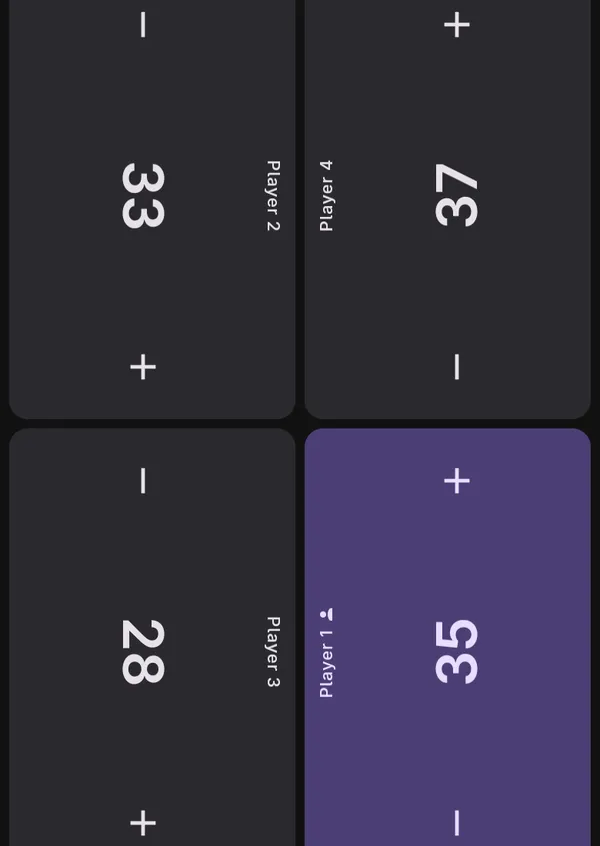
Each player gets a panel. Tap minus or plus to change life by one, or hold either to keep counting. In a game of four or more, the panels turn to face the edge of the device each player sits at. When a deck is attached, Player 1 is your seat and is highlighted.
Tap a panel to open that seat’s sheet. It has a Name field, Life in steps of 5 and 10, Poison, and Counters. In formats with a commander damage rule, Commander damage is tracked separately for each opponent’s commander.
A seat is out only when you say so. Tap Out of the game on its sheet. The tracker suggests the cause when a total is lethal, but never marks a seat out on its own. Back in the game reverses it.
The top bar has Undo, Finish game, and Game options. Game options changes the player count mid-game, turns on Track turns (a NEXT TURN bar under the board), and holds Discard game, which deletes the game without recording anything.
The screen stays awake while a game is open. The game is saved as you play, so if the app is closed or you leave the tracker, opening it again picks the game back up.
Who played first, and mulligans
Section titled “Who played first, and mulligans”When a deck is attached, a strip under the top bar asks two questions at the start of the game:
- Who played first? Tap You or the seat that started.
- Your mulligans? Tap Kept 7, 1, 2, or 3.
Tap the close button to skip. Skipping records nothing rather than guessing. To answer later or fix a mistake, open your own seat’s sheet and use Opening: Played first or Drew first, and the mulligan count.
Finish a game
Section titled “Finish a game”- Tap Finish game. The sheet shows the result from your seat: a loss if your seat is out, a win if you are the last seat standing, and a draw otherwise.
- If no deck is attached, choose one in Record against a deck, or leave it on Don’t record.
- Tap SAVE AND FINISH to record the game and close the tracker.
For a best-of-three, tap SAVE AND PLAY GAME 2 instead. The game is recorded and the next one is dealt with the same players, starting life, and names. Every game goes onto the same match, so a 2-1 is recorded as one match. This holds even if the app is closed between games. Starting a game with a different deck begins a new match.
Where the results show up
Section titled “Where the results show up”Tracked games land in the deck’s MATCHES tab, next to matches entered with RECORD MATCH, and count toward the deck’s record and win rate.
The deck’s ANALYTICS tab uses them for PLAY OR DRAW, MULLIGANS, and WIN RATE OVER TIME. Games where you skipped the opening questions are listed as unrecorded and left out of those splits, not counted against them. Once you have tracked a game, a TRACKED GAMES section adds game length, life lost, and your average finish in a pod. The rest of the deck screen is covered in Deck pricing, legality, and swap plans.
Match history stays on your device and is included in backups. See Backup, restore, and deleting your data.