Searching, filtering, and scanning cards
Search lives on the Cards tab. The same search box looks through your own collections or through every Magic card, and a card found either way opens the same detail screen.
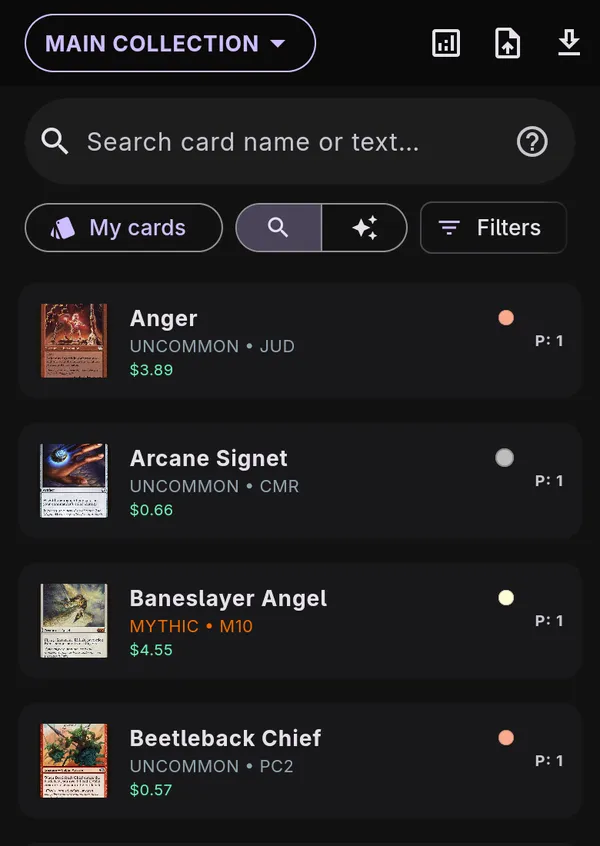
Search
Section titled “Search”The row under the search box sets what a search covers and how it reads your query:
- The scope button shows My cards or All cards. Tap it to open Search scope, where All cards is the whole Magic catalog and My collection lets you pick one or more collections. Switching the collection at the top of the tab points the search at that collection again.
- The magnifier and sparkle buttons (Keyword and Semantic) switch the search mode. Semantic search finds cards by meaning and needs a separate model; see Semantic search.
- Filters opens the filter sheet, described below.
- In keyword mode, Sort and Group by name order your collection’s results and fold several printings of a card into one row. Physical / Arena limits a collection search to one kind of copy.
When searching All cards, the search box understands a short syntax. Tap Search syntax
help (the question mark) for the list: n: for the name, t: for the type line, o: for
card text, r: for rarity, draw* for a prefix, quotes for an exact phrase, and OR between
two terms. When searching your own cards, the box matches card names, and card text as well
when INCLUDE ORACLE TEXT is on.
Tapping into the search box lists your recent keyword searches, narrowing to matches as you type. Tap one to run it again, remove one with its close button, or tap Clear recents.
Where results come from
Section titled “Where results come from”An All cards keyword search runs against the card catalog on your device, so it works offline once you have run Sync Card Catalog (Install and first run).
The Online chip, shown for keyword searches of all cards, also sends the query to Scryfall’s search API and adds its results after the local ones. It is off by default. If the local catalog finds nothing for a query you typed, the app asks Scryfall anyway, and says so above the results so you know those cards are not in your synced catalog.
Filters
Section titled “Filters”Tap Filters, set what you want, then tap APPLY. RESET clears every filter.
- LEGENDARY ONLY and INCLUDE ORACLE TEXT
- Types, Subtype, and Rarity
- Color Identity, with Colorless set to Any, Include, or Exclude
- Mana Value and Price, each as a Min and Max (price is in the currency set in Settings)
- Set, by code or name
- Legal In Format
- Quantity Owned
Active filters show as chips under the controls. Remove one with its own delete button, or tap Clear filters to remove them all. Filters apply in semantic mode too.
Card details and printings
Section titled “Card details and printings”Tap a card to open it. When it came from a list, Previous card and Next card (or a swipe) page through the rest of that list. Cards you do not own have an Add to collection menu in the results, with Add to Physical and Add to Arena.
PRINTINGS lists every printing of the card in your local catalog, with the one on screen highlighted. Tap another to open it. If you own copies of the printing on screen, a button under the list moves them to a different printing (MOVE COPIES TO), keeping their condition, finish, and loan status. If the catalog is not synced, only the current printing is listed.
For a double-faced card, SHOW BACK in the top bar flips to the back face: the image, name, mana cost, type line, and card text all switch. SHOW FRONT flips it back.
Find similar cards opens a list of cards close in meaning to this one. It uses the same index as semantic search.
Scanning cards
Section titled “Scanning cards”The scanner is available on Android. On desktop the button is not shown.
- On the Cards tab, tap Scan Cards (the camera icon in the top bar).
- Allow camera access when asked. If you declined, enable it in the device settings and tap RETRY.
- Hold the card so the set code and collector number in its bottom-left corner sit inside the guide, and keep it steady.
- When the card is recognized, tap Add to Collection.
Scanning Tips (the question mark) has advice on lighting and alignment. Text is read from the camera preview on your device and no photo is stored. The scanner looks the set code and number up on Scryfall, so it needs a connection. See the Privacy Policy.