Deck pricing, legality, and swap plans
Open a deck from Decks to see its cards. The CARDS tab shows what the deck is worth and what you still need to buy. The same screen checks the deck against its format and keeps your sideboard swap plans.
Choose a currency
Section titled “Choose a currency”- Open Settings and find Appearance.
- Under Currency, choose USD or EUR.
Both sets of prices are Scryfall’s quotes. Euro prices are not converted from dollars, so a card can have a price in one currency and none in the other.
Choose a store
Section titled “Choose a store”Buy buttons send you to TCGplayer, Mana Pool, or Cardmarket.
- Open Settings and find Shopping.
- Tap Buy Cards From and choose a store.
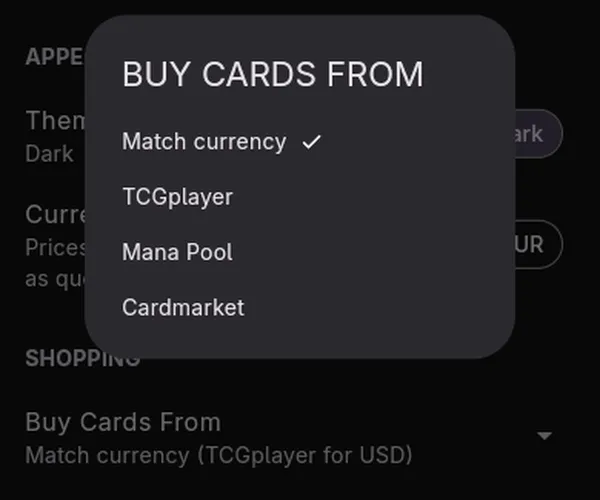
Match currency is the default. It sends you to TCGplayer with USD and Cardmarket with EUR. Choosing a store keeps it whichever currency you read prices in.
Deck value
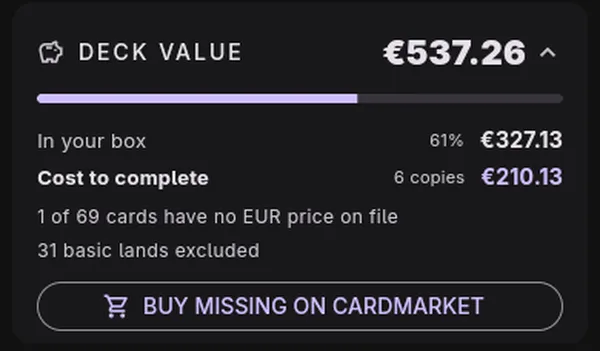
Section titled “Deck value”The DECK VALUE panel sits above the deck’s cards. Its headline is the market value of every copy the deck calls for, across the command zone, main deck, and sideboard. Tap the headline to show or hide the breakdown. On a narrow screen the breakdown starts hidden.
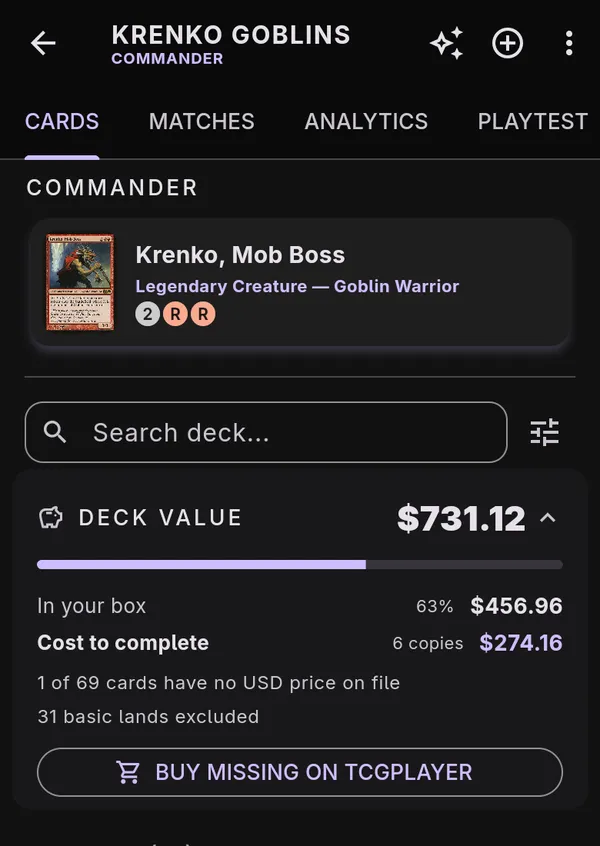
- In your box is the value of the copies you already have, and what share of the deck that is.
- Cost to complete is the value of the copies you are short, with how many copies that is. When you have every card, the panel says so instead.
A few rules decide those figures:
- Cards are matched to your collection by name, not printing. Owning any printing counts. The price used is the printing the deck lists.
- Ownership is read from the active collection, or from all collections when none is selected.
- Maybeboard cards are not priced. Basic lands are left out, and the panel says how many.
- A card with no price in your currency adds nothing. The panel says how many cards that affects. If some of the cards you are missing are unpriced, the cost to complete is lower than the real spend.
- If no card in the deck has a price, the panel shows one line and no figures. Run Refresh Prices in Settings (see Install and first run).
Buy the missing cards
Section titled “Buy the missing cards”With the breakdown open, tap the buy button. It names the store you chose (see Choose a store). The same action is Buy missing cards in the deck’s More actions menu, which stays available when the panel has no figures to show.
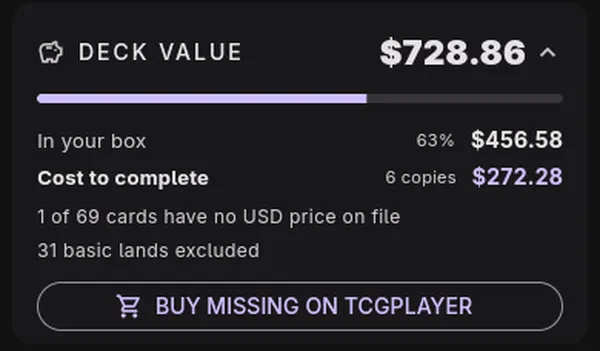
- TCGplayer opens its Mass Entry page with the missing cards and quantities filled in.
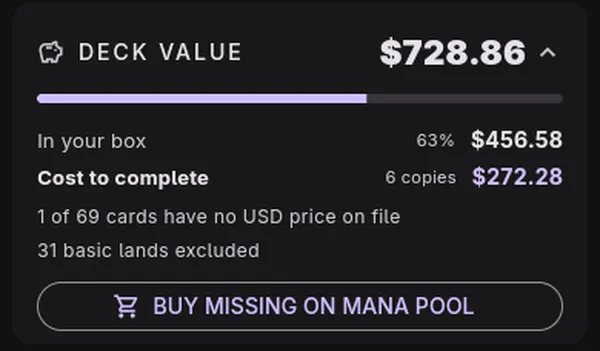
- Mana Pool copies the missing cards to the clipboard, one quantity and name per line, and opens its Add Deck page. Paste the list there.
- Cardmarket copies the missing cards to the clipboard the same way and opens its want list page. Paste the list into a want list there.
The list is the copies you are short, the same count as Cost to complete. Basic lands and maybeboard cards are not included. If you already have every card, nothing opens.
Format legality
Section titled “Format legality”The app checks the deck against its format whenever its cards change. If anything is wrong, a Format issues detected bar appears under the tabs. Tap VIEW for the list. The check covers:
- deck size, and the sideboard limit for the format
- a missing or ineligible commander, for formats with a command zone
- cards that are banned, not legal, or restricted with more than one copy
- cards outside the command zone’s color identity
- too many copies of a card (basic lands excepted)
- cards with no legality data, which a Sync Card Catalog fixes
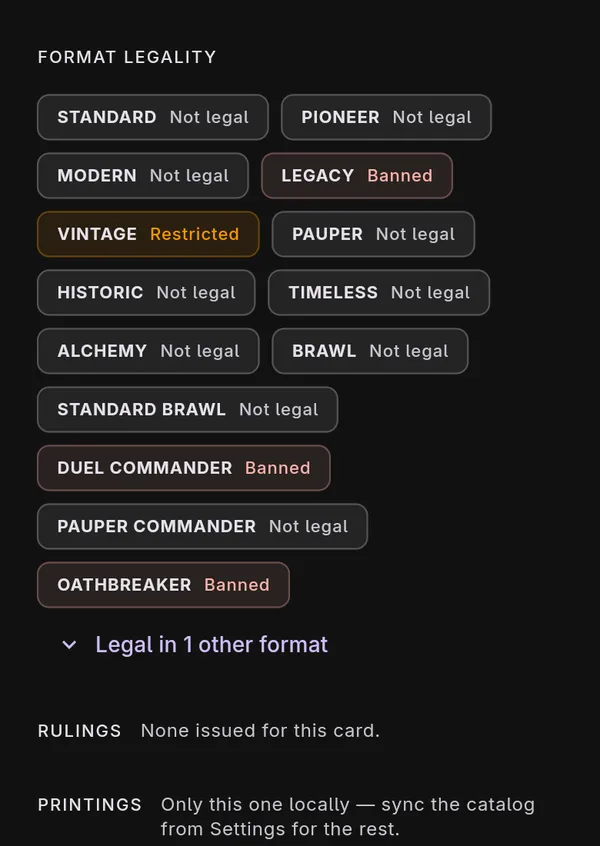
To see where one card stands, tap it. Its detail screen has a FORMAT LEGALITY section. Formats where the card is banned, restricted, or not legal come first. The formats where it is legal sit behind a button that counts them.
Both are computed from the Scryfall legality data in your synced catalog and the card counts in the deck. They are only as current as your last sync, and they are not an official ruling. Check a tournament’s own rules before you register a deck.
Sideboard swap plans
Section titled “Sideboard swap plans”A swap plan says what to take out and bring in against a given opponent, written before the round. Plans exist only for formats with a sideboard. They sit under SIDEBOARD on the CARDS tab, and Sideboard plans in More actions opens them from anywhere on the deck.
- Tap NEW beside SWAP PLANS.
- In Against, enter the opposing archetype.
- Under TAKE OUT, tap ADD and pick cards from the main deck. Under BRING IN, tap ADD and pick cards from the sideboard. Use the plus and minus buttons to set counts.
- Optionally, fill in Notes (how the matchup plays out).
- Tap SAVE PLAN. It needs an archetype and at least one card.
Tap a saved plan to open a read-only view with OUT and IN columns and your notes, sized for reading at the table. The pencil button next to it reopens the editor, which also has DELETE.
A plan does not move any cards in the deck. While you edit, the app warns when a card in the plan is no longer in the deck or has fewer copies than the plan moves, and when boarding would break a format rule the deck currently passes. It also remarks when the in and out counts differ. These warnings use the same format check as above, with the same limits.